Laser Creation Beginner Course | Case 3: Customized exquisite bottle opener design project

1
2

Drawing Description

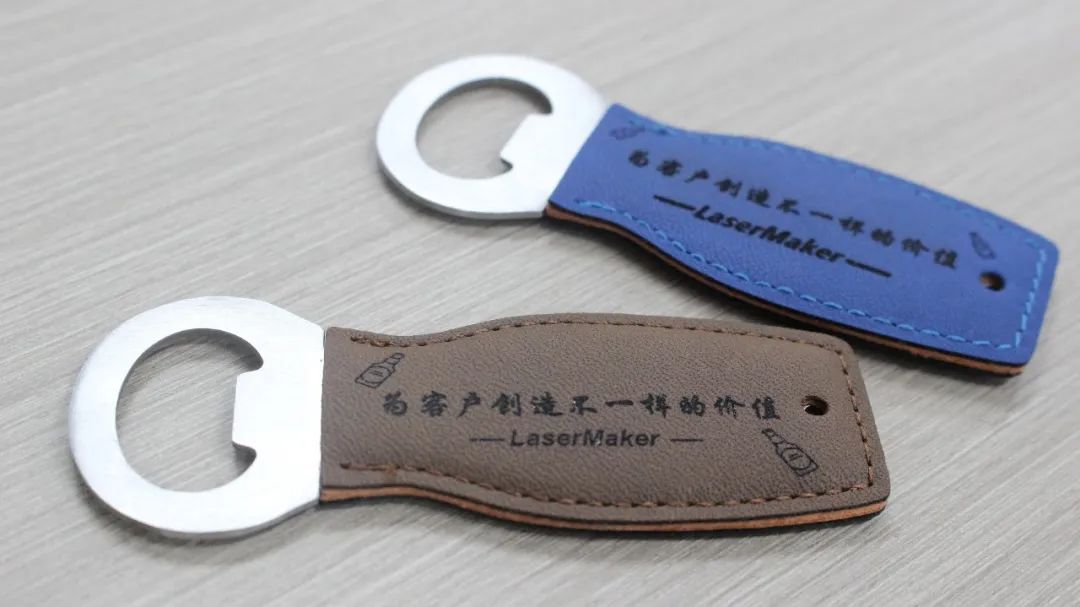
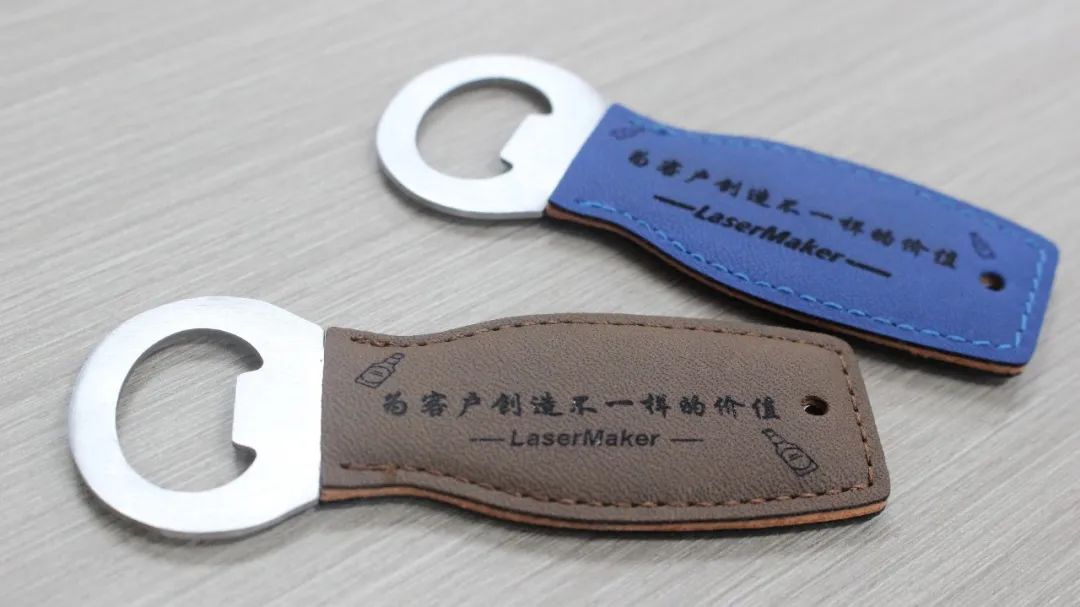
The appearance design of the bottle opener is stylish and exquisite, and can be customized according to the customer's needs. For example, the customer's company logo or personal identification can be printed on the surface of the bottle opener to increase the brand promotion effect. Customized exquisite bottle opener is a high-quality, fashionable, and practical tool that is an ideal choice for business gifts, promotional events, and other occasions.

Exquisite bottle opener.jpg

drawing documents

bottle opener
Drawing Cover - bottle opener
Basic Parameters
0:0:26

Draw graphic elements (text, patterns)

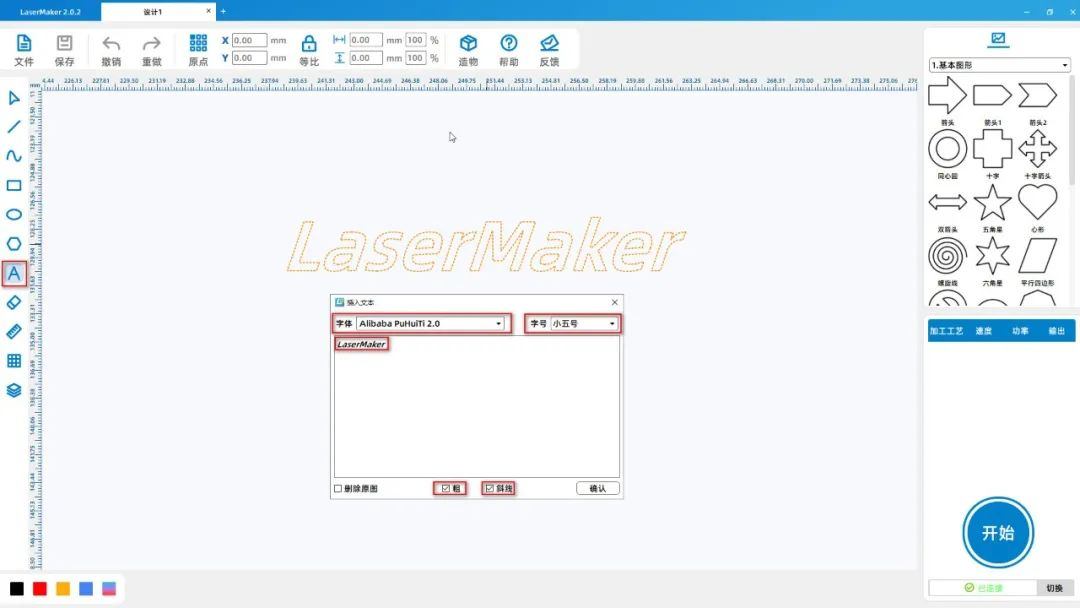
(1)Click on the 'Font' tool from the 'Drawing toolbar' on the left, and enter“LaserMaker”Set the font and font size to“Alibaba PuHuiTi 2.0”Xiao Wu

Click the mouse to check the options of "bold" and "diagonal", and set them as text ①, as shown in the following figure:
4418d4c0a59a308900f9c2a2e013851f.jpg

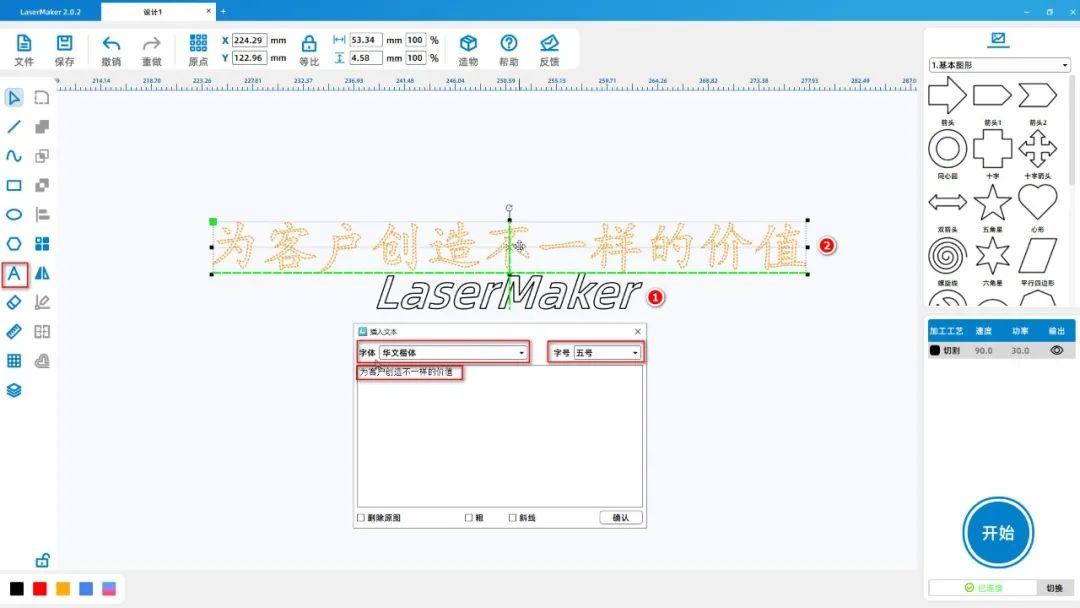
(2)Click on the "Font" tool from the "Drawing Toolbar" on the left, enter "Create Different Value for Customers", set the font and size to "Chinese Kai Script" and "Number 5" respectively, and then

Set it as Text ②, click the "Select" tool from the left "Drawing toolbar" to move Text ② to the center position directly above Text ①, as shown in the following figure:
ffac0c379a55efb2149ffc693d099169.jpg

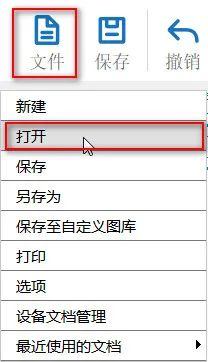
(3)Click on 'File' in the upper 'Function Area', then click on 'Open', double-click to open the image that needs to be carved, as shown in the following figure:
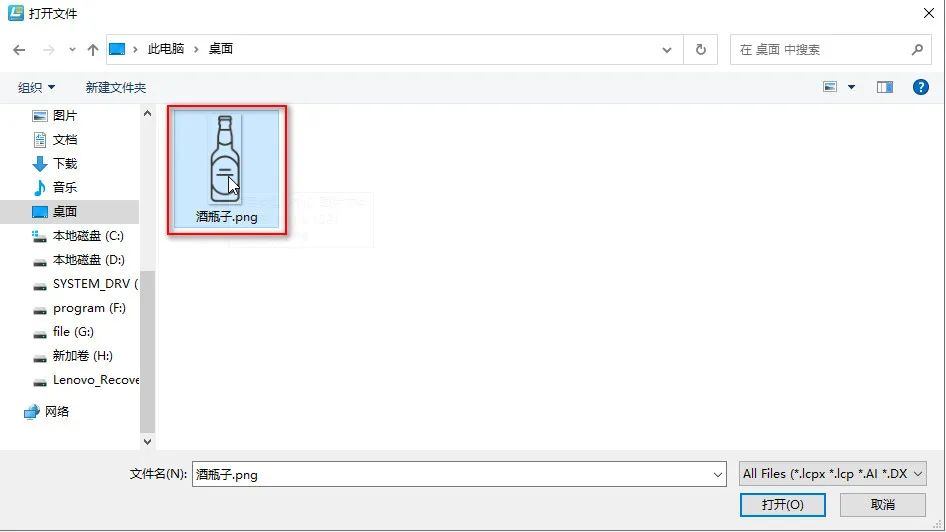
0858e534f23b19ad811aab2c4b9d06a2.jpg210c4d63c03cc162f76726e91a31e97c.jpg

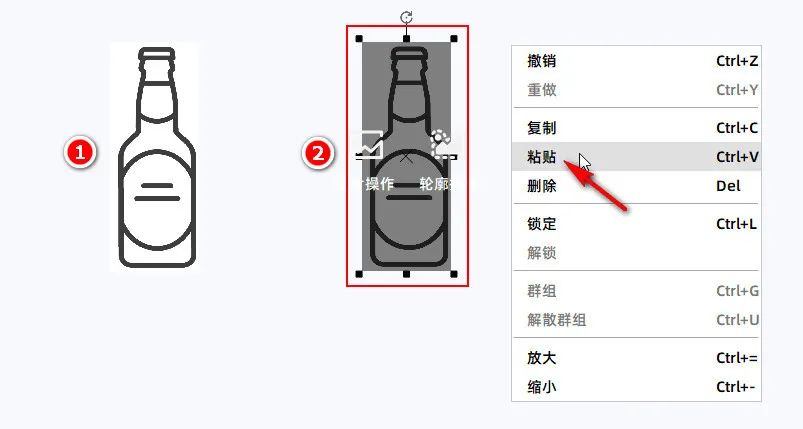
(4)Select the graphic "Wine Bottle", right-click, and choose "Copy" from the pop-up dialog box list indicated by the red arrow, Next, click on the area where you need to paste the pattern

Right click on the mouse and select "Paste" at the red arrow in the pop-up dialog box list to copy the same graphic. Set the two graphics as graphic ① and graphic ② respectively,

As shown in the following figure:
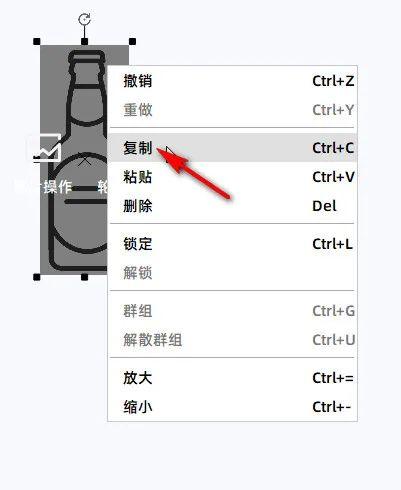
7c3b4dd380fcb4e98205bb39557cfcb8.jpg

ffa53390624a1292879ed388140eaf5e.jpg

Tips:Select a graphic and press shortcut keys on the keyboard“Ctrl+c”(Copy), then press the shortcut key“Ctrl+v”(Paste), you can also copy graphics.

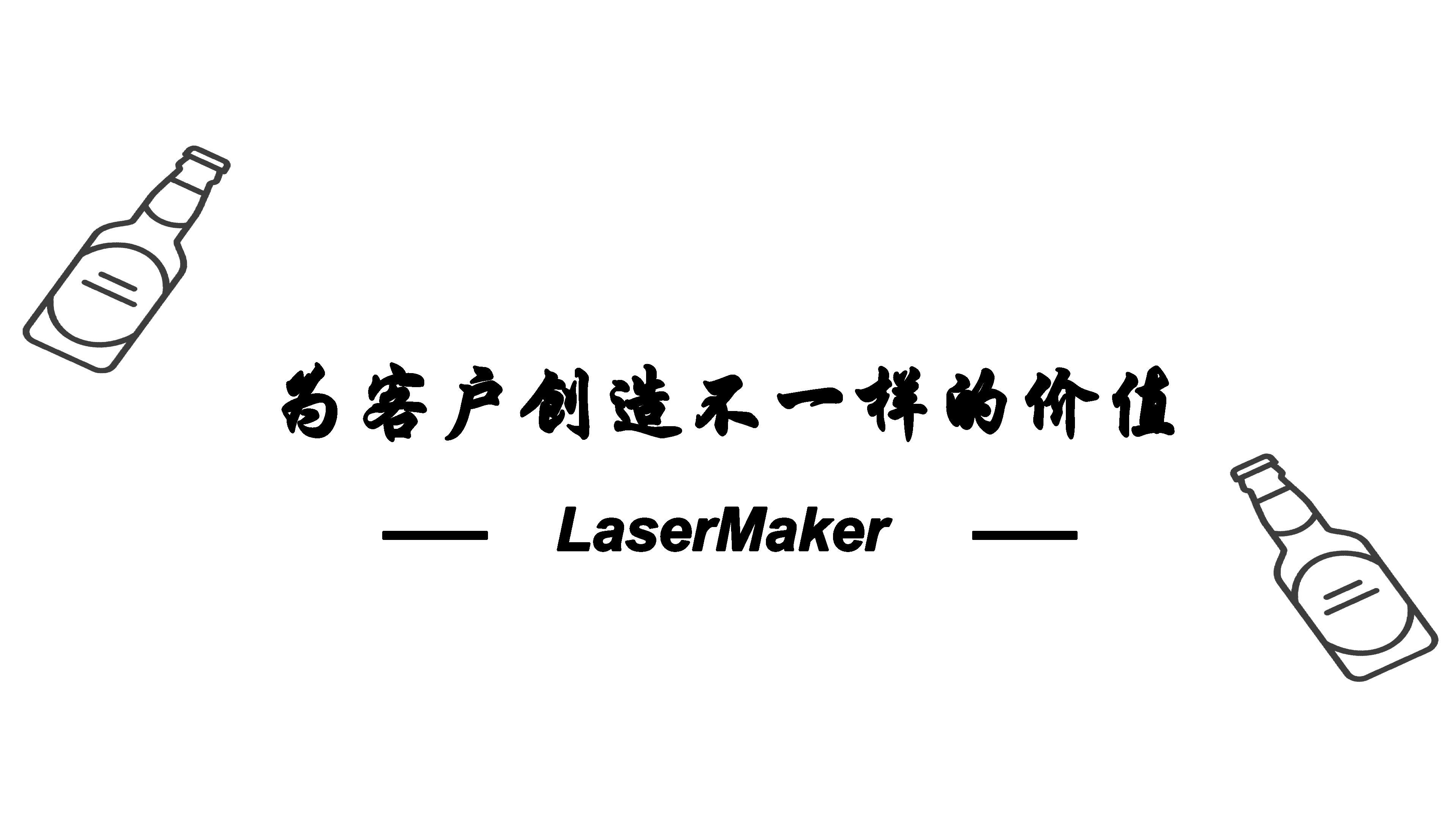
(5)Select graphic ①, left click and long press above the graphic with the mouseRotate iconAnd move the mouse to observe the degree above the graph30Release the left mouse button to rotate the graphic clockwise

30Degree; Rotate graphic ②, input above the graphic“-30”Left click with the mouseRotary buttonYou can rotate graphic ② counterclockwise30Move graphic ① and graphic ② to text ① respectively

On both sides above, as shown in the following figure:
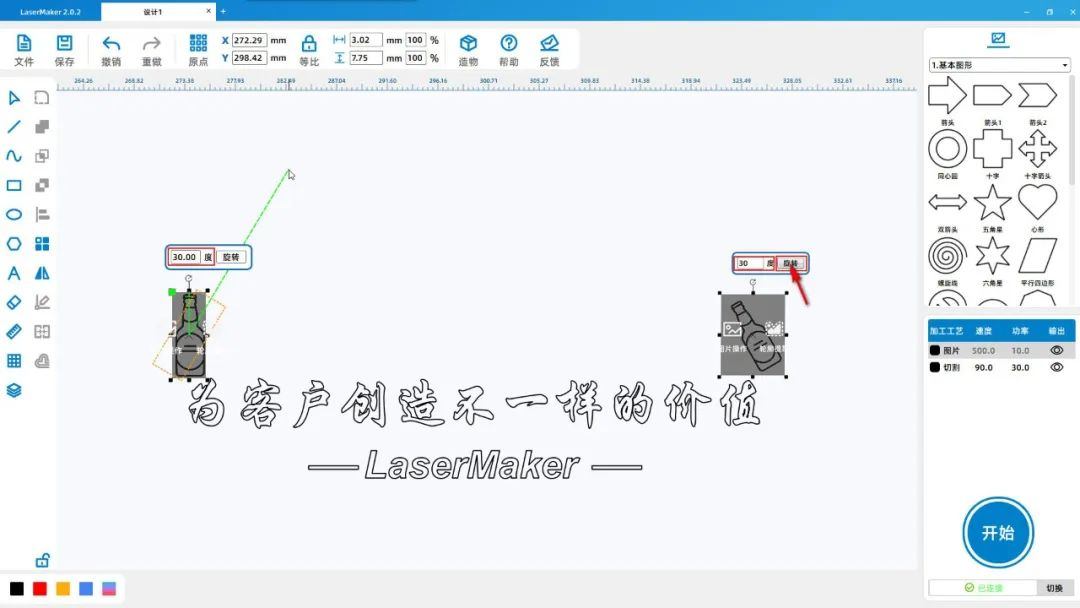
7a6948a8d3f464d18a9c00f5bdd898cc.jpg

Laser processing

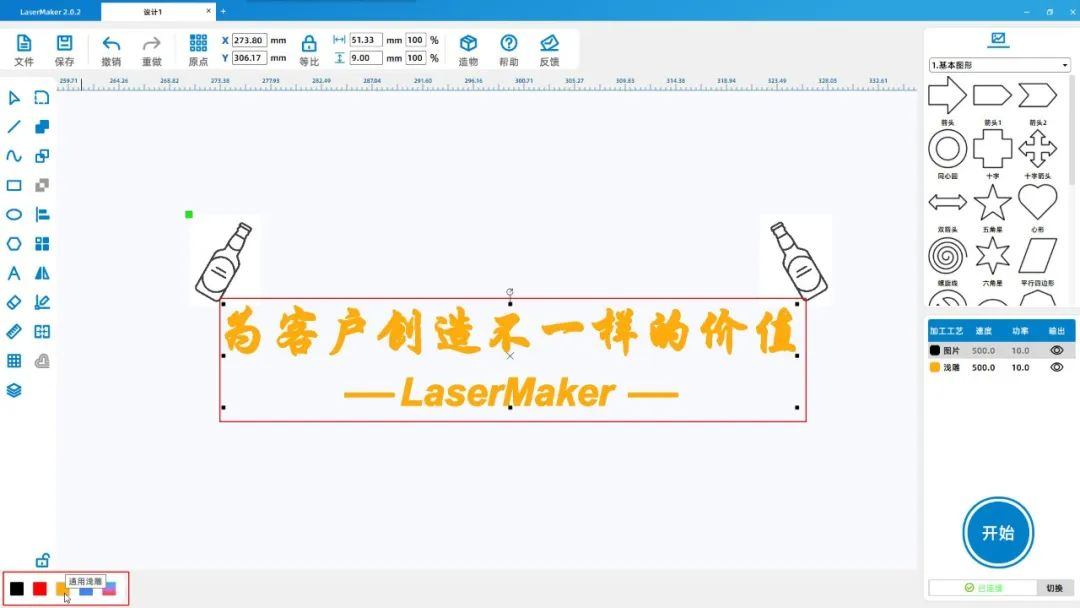
(1)Select font ① and font ②, left click on the yellow layer in the lower left corner of the 'Layer Color Palette' to set the 'Font' to the yellow layer, as shown in the following figure:

aa0e8eedd9a7337885addb3b6938312a.jpg

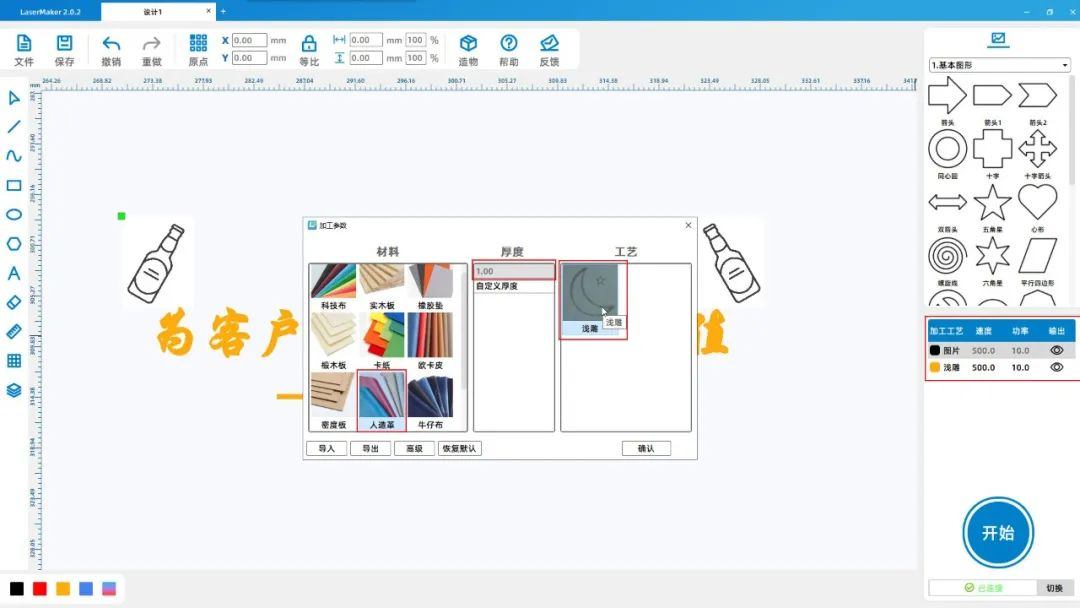
 (2)Double click the 'Processing Panel' in the bottom right corner with the mouseBlack Image LayerSet the material, thickness, and process to artificial leather, respectively1mmShallow carving; Translate into EnglishyellowlayerMaterial, thickness

The processes are set to artificial leather1mmShallow carving, as shown in the following picture:

dd46b4b434ae3db79321cbcfd3e393cc.jpg

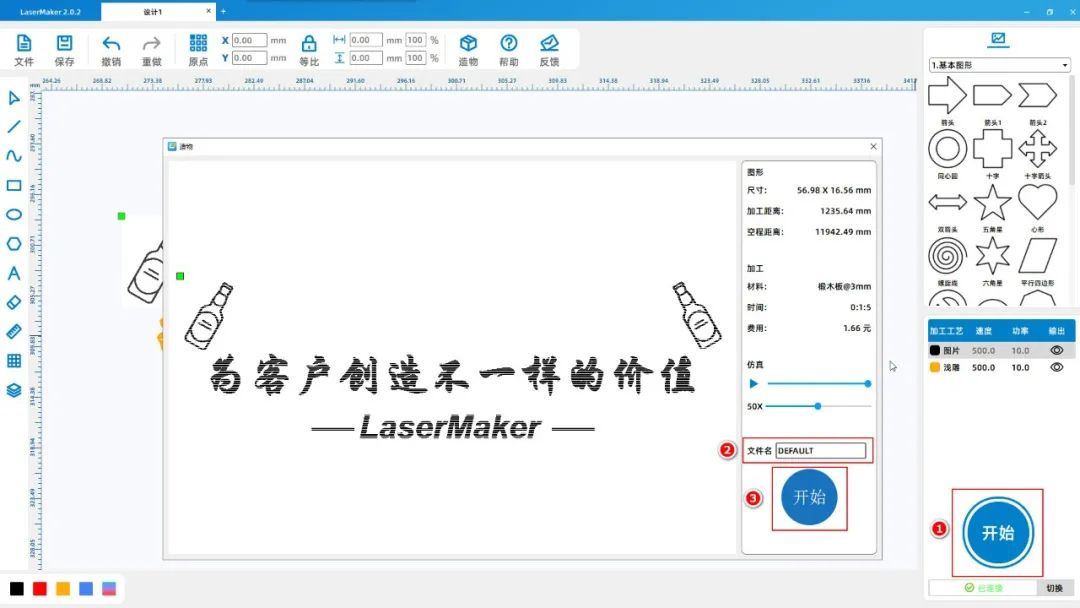
(3)Click on "Start" in the bottom right corner of the "Processing Panel" to upload files to the device, as shown in the following figure:

96739e72f6ac0bf7d91c4d4f17cf750a.jpg

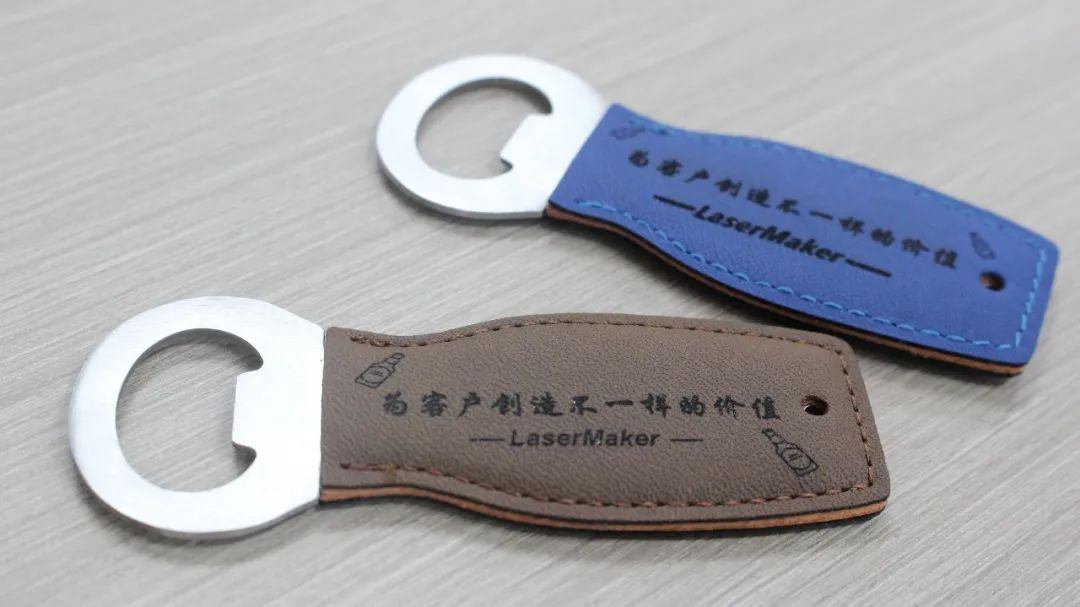
Finished Product Display

13f5b33895b30931fc4ce7683e41910b.jpg

Summary:

Looking back at the process of creating this example, we have learnedLaserMakerI learned how to use the software's' Rotate 'and' Horizontal/Vertical Rotate 'drawing tools, as well as the shortcut key' Copy '

The operation methods of "making" and "pasting" are not difficult for drawing and modeling. Everyone must try and practice more!

comment (0)
Support drag and drop upload · most 10 Zhang · single sheet ≤ 3MB
Drag the image here or click "Select Image" to upload (supports multiple images)
Laser Creation Beginner Course | Case 3: Customized exquisite bottle opener
drawing ID: SUCAI-9 2024-4-2 16:10
0
0
0
6
0Contribution points
Purchase points
collection
like
Grade discount
Basic Information
Update time 2024-4-2 16:10
advertisement