Laser Creation Beginner Course | Case Seven:DIYRubber tile printing design project

1
2
3
4

Drawing Description

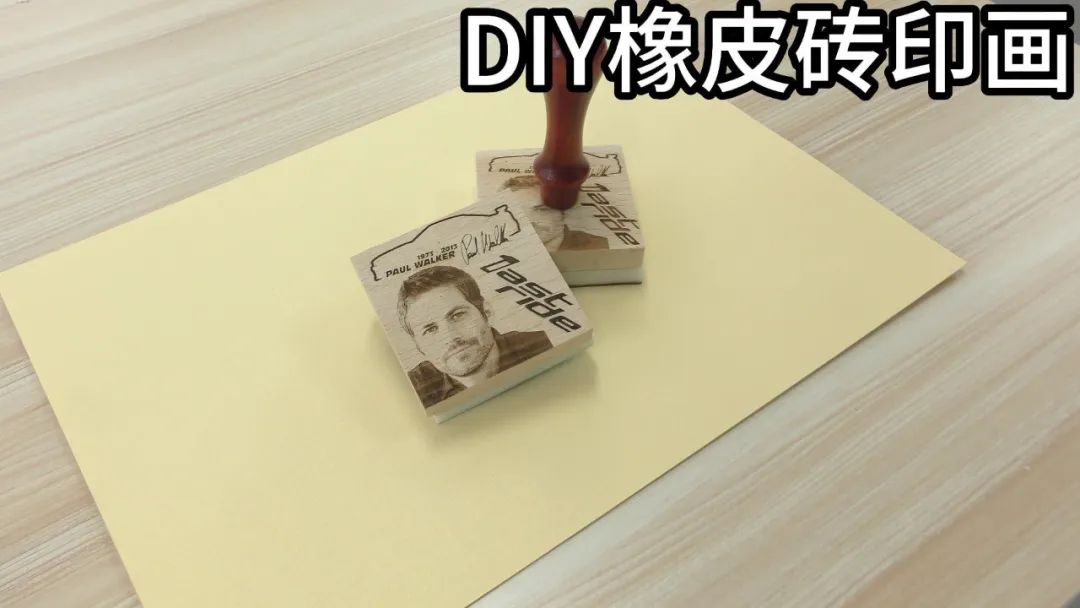
Seal painting refers to the use of seal painting by emperors on edicts or memorials. I hereby approve. Seal painting is a type of seal, but it is different from seals. Prints belong to a type of material that can be carved with various patterns, such as character portraits, cartoon images, flowers, trees, and so on. Dip it in ink and gently press it to leave your favorite patterns on paper. This issue brings to everyone “DIYRubber tile printing " The production method!

diyseal.jpg


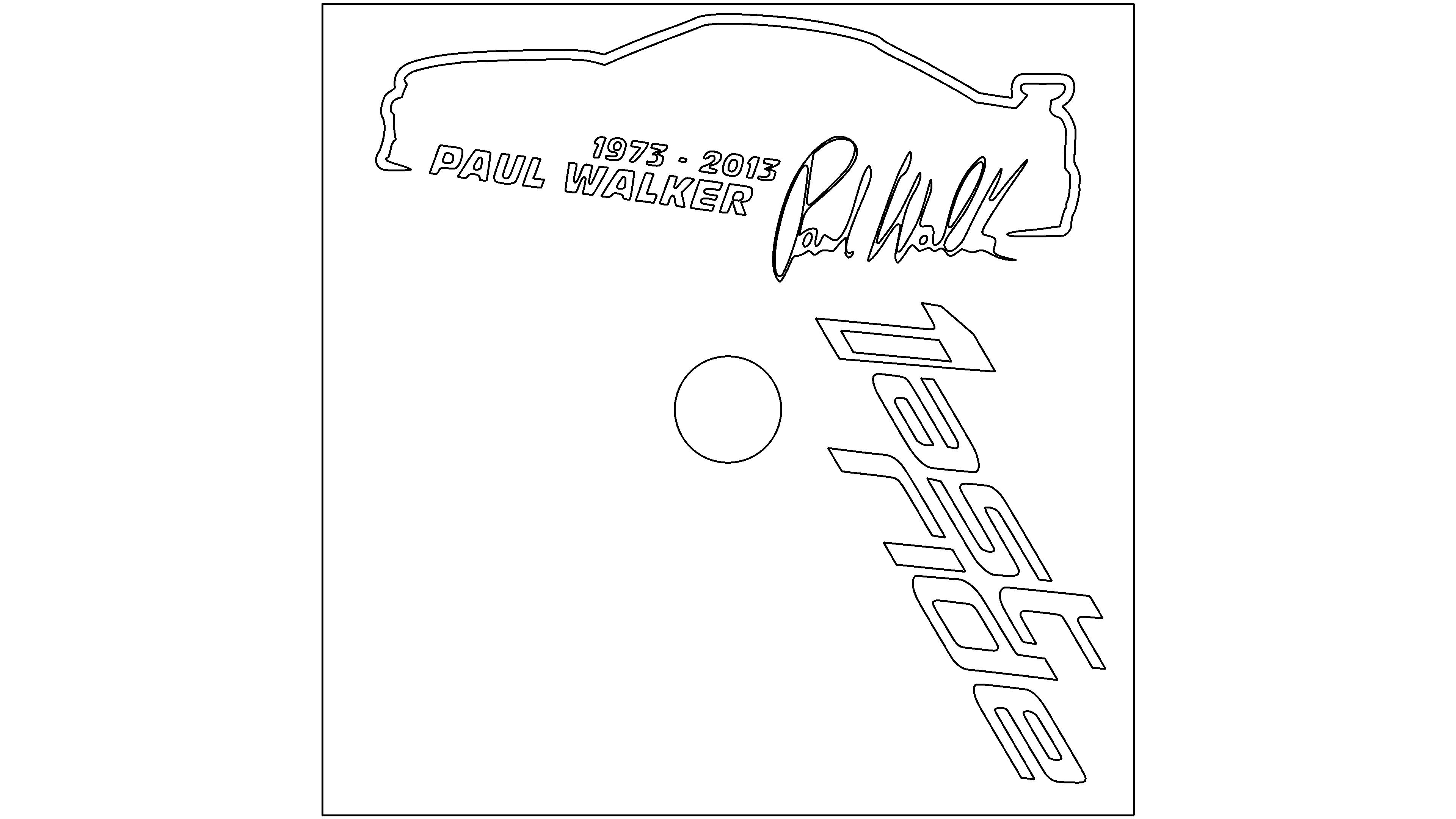
drawing documents

Maple block carving
Drawing Cover - Maple block carving
Basic Parameters
0:0:25
Rubber pad carving
Drawing Cover - Rubber pad carving
Basic Parameters
0:0:2

Draw the appearance

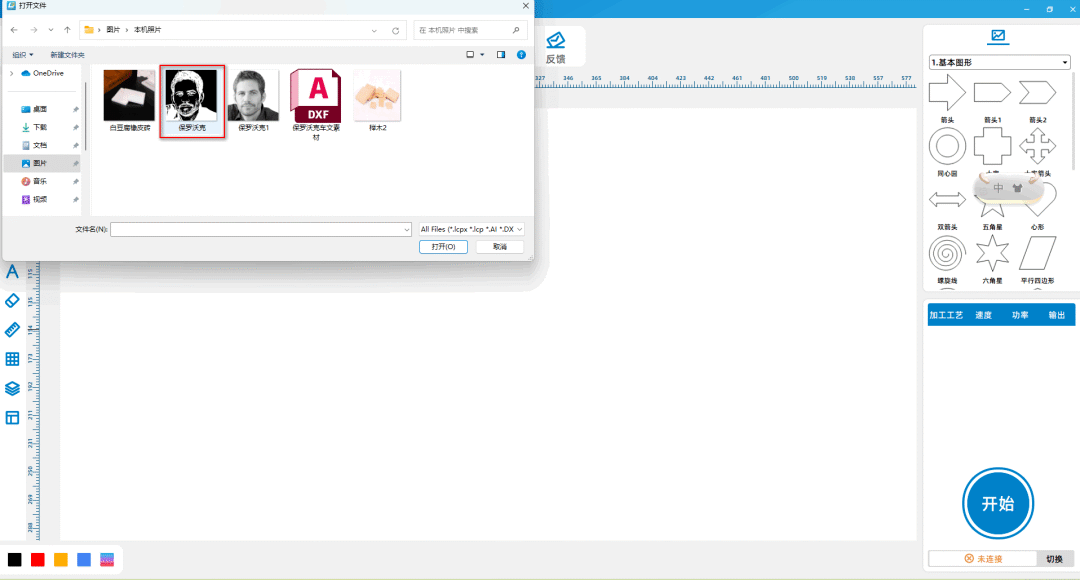
(1)Click on 'File' in the upper 'Function Area', then click on 'Open', double-click to open the desired material image, and adjust it to the appropriate position within the rectangle, as shown in the following figure:

71ff45479d6c79ded49e395767436ee6.png

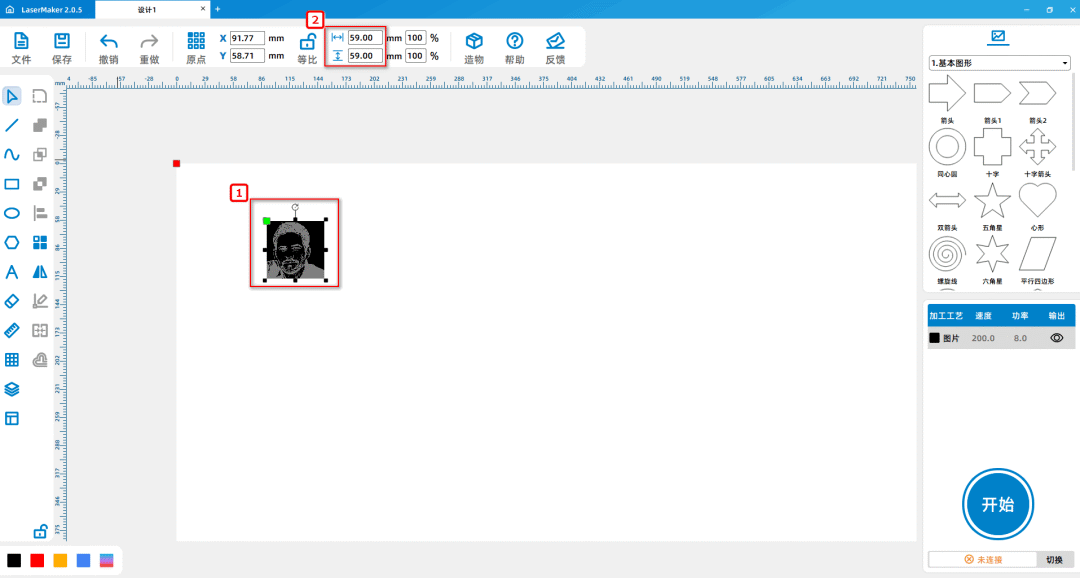
(2)Select the image and change its size to long from the 'Drawing Toolbar' above59mm, wide59mmThen move the graphic to align with the bottom left corner of the rectangle

As shown in the following figure:

a6927b553aadbe32ebb1e1874a0905dd.png

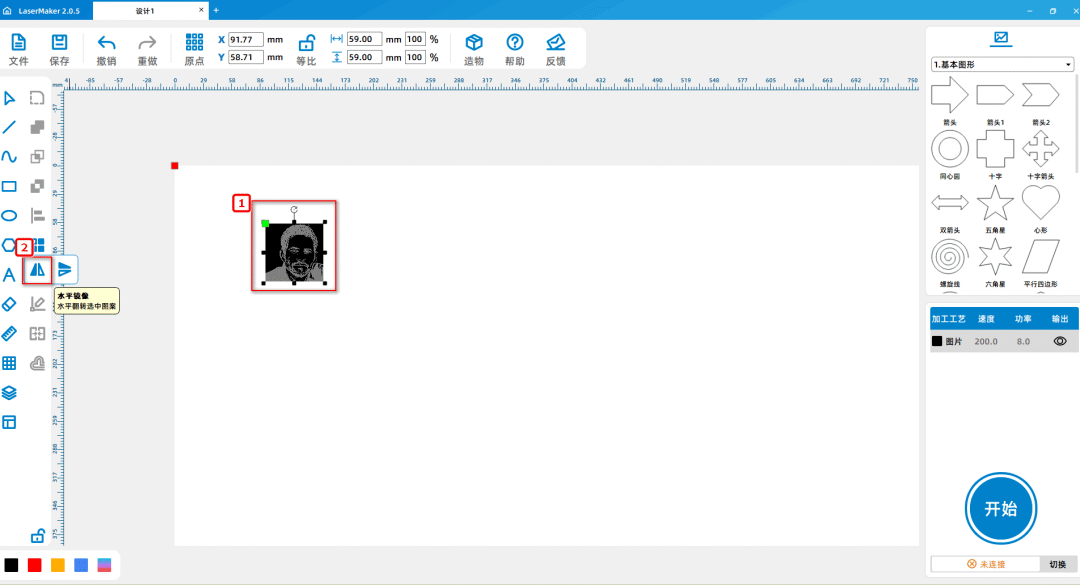
(3)Select the image and place the mouse on the 'Horizontal Mirror' pattern from the 'Drawing toolbar' on the left. Click the left mouse button on 'Horizontal Mirror', as shown in the following figure:

6ca307a9c655b3a4a405945bfe1c63b7.png

Tips:Due to the reflection of the pattern obtained when using printing, it is possible to mirror the pattern once during printing, so that the desired normal pattern can be obtained when using printing.


Laser processing

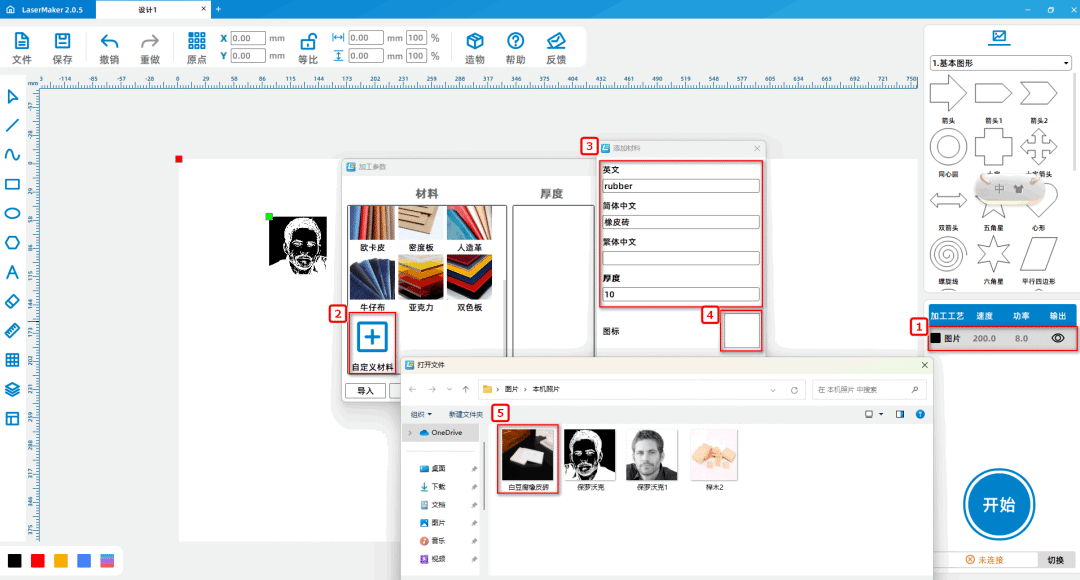
(1)Double click the 'Processing Panel' in the bottom right corner with the mouseBlack layer,Add custom material "rubber brick", double-click "custom" with the mouse, and set English and Simplified Chinese as

rubberRubber tiles10mmDouble click the blank icon and select the image of the rubber tile material, as shown in the following figure:

11e17824a758fc665aa0f326a086e155.png

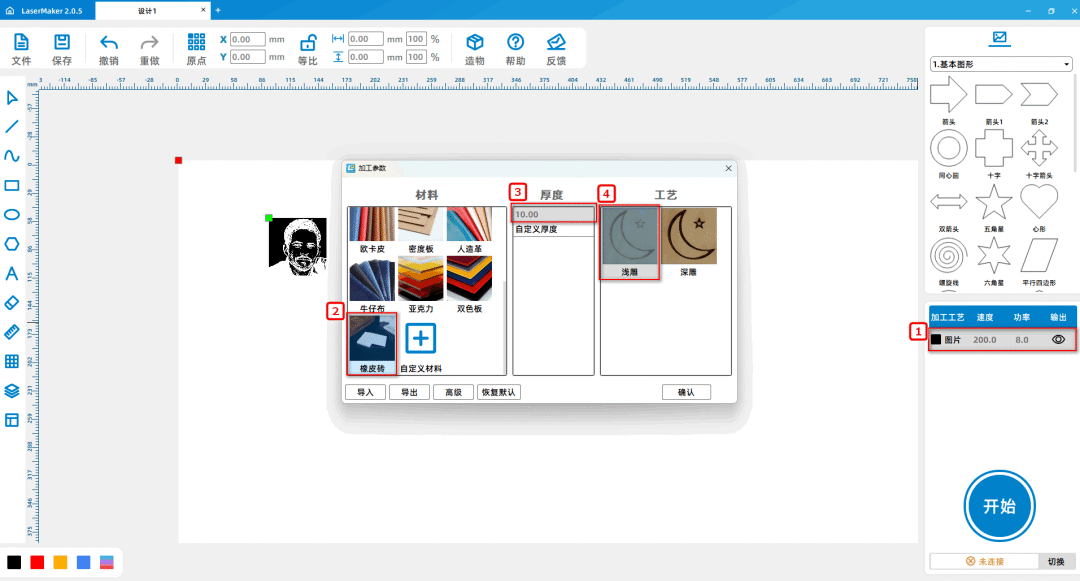
(2)Double click the 'Processing Panel' in the bottom right corner with the mouseBlack layer,Set the material, thickness, and process to rubber bricks10mmShallow carving, as shown in the following picture:

fb123f1a61df2a08a2e381d81862f104.png

Method for making beech wood blocks

1.Draw the appearance

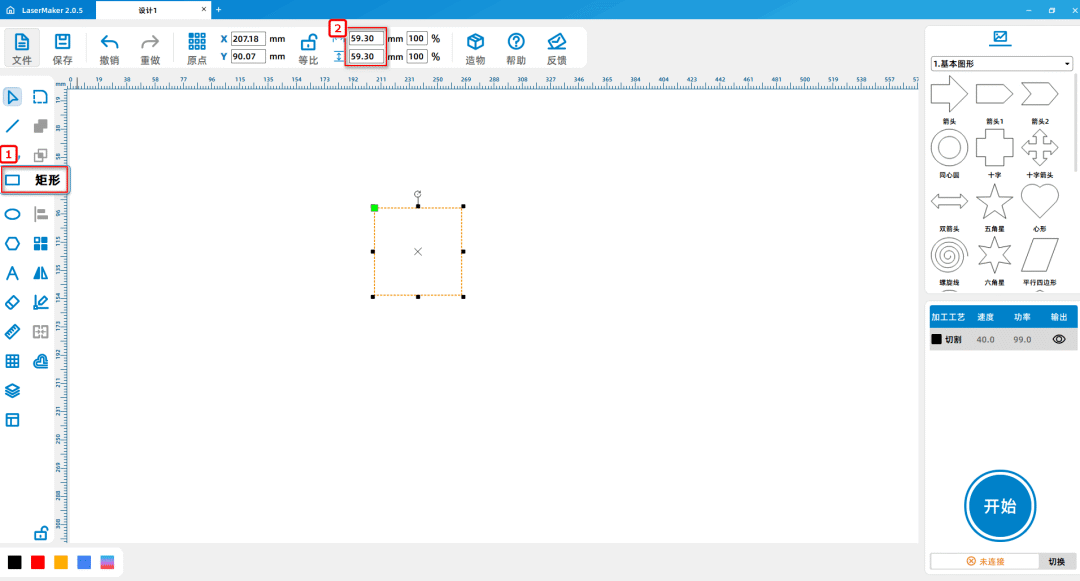
(1)Open itLaserMakerSoftware, select the "Rectangle" tool from the "Drawing Toolbar" on the left, then move the mouse to the drawing area and hold down the left mouse button

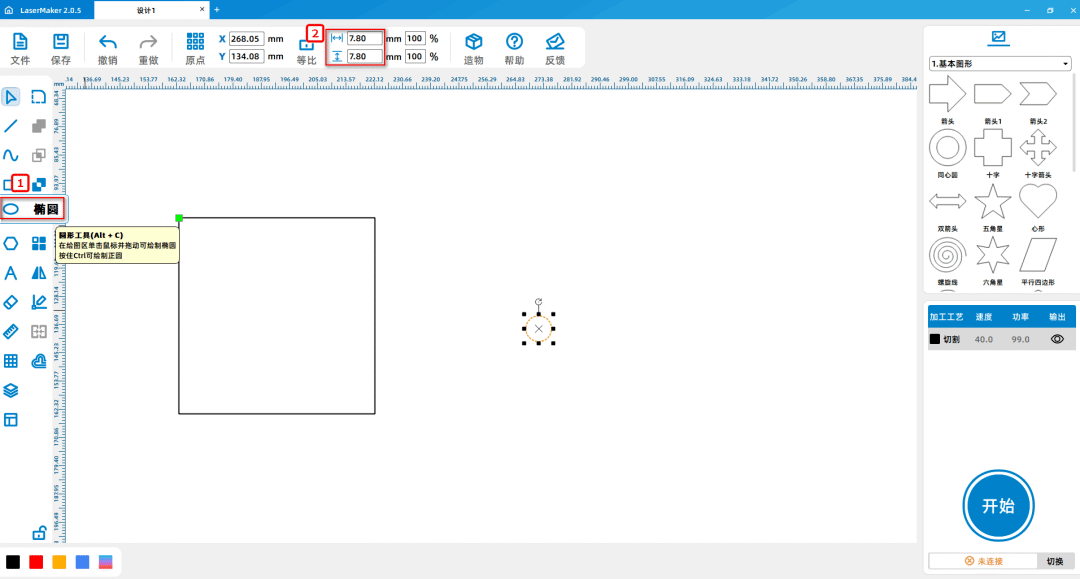
Drag and drop on the drawing area to draw a length of59.3mmThe width is59.3mmThe rectangle; Select the 'Ellipse' tool, then move the mouse to the drawing area and hold down the left mouse button while drawing

Draw the diameter on the map area as7.8mmThe perfect circle is shown in the following figure:

669d8fbb13c13d95f99aad4c75ff7e22.png

9d1f5a73f35a8edbadf18ff977d6596f.png

Tips:The production of a perfect circle is used to drill holes and connect the handle with a wooden block of beech wood.

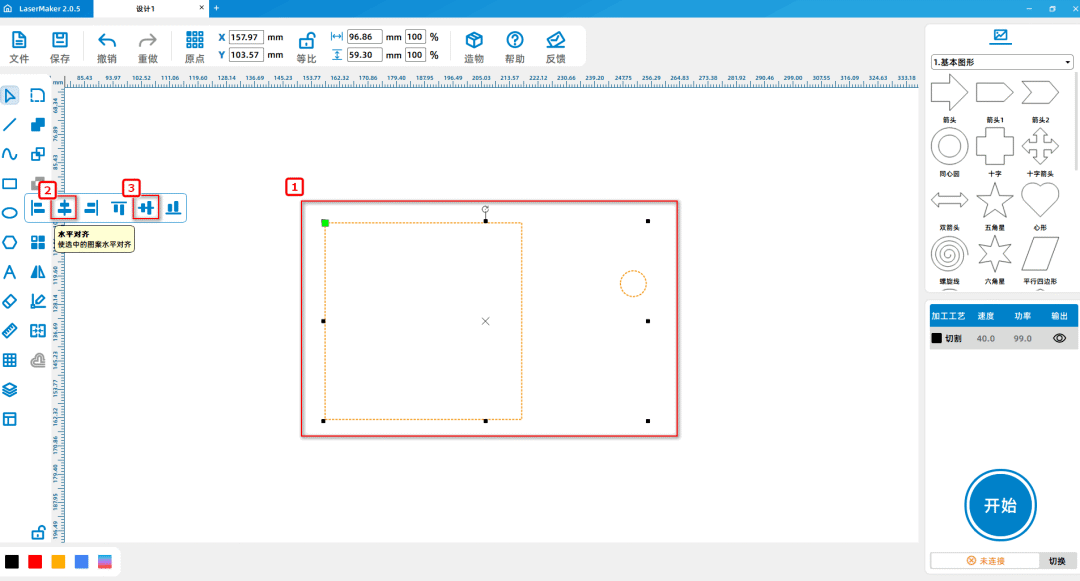
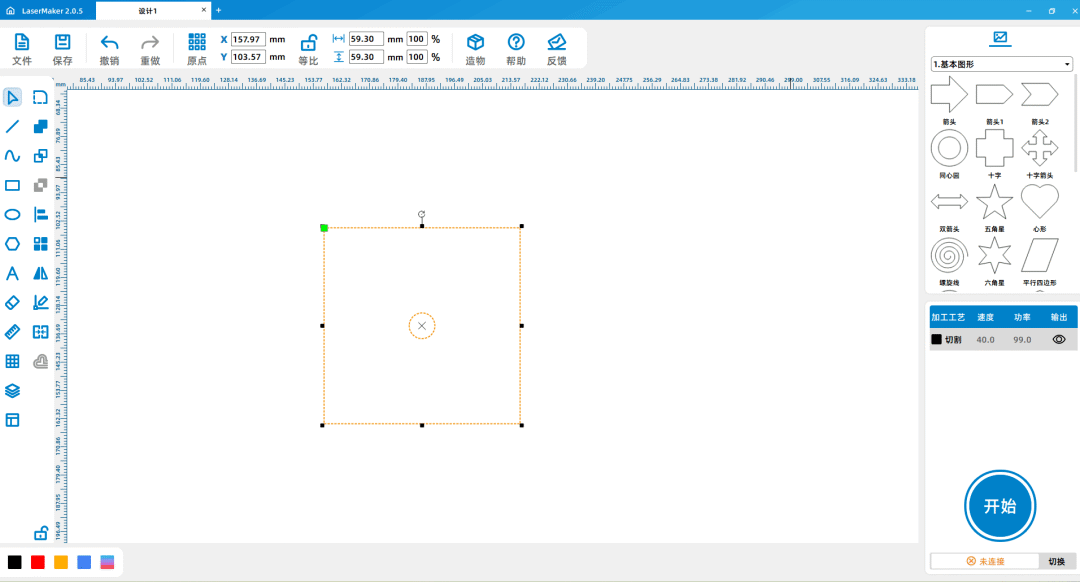
(2)Select the rectangle and circle, and place the mouse on the "Left Alignment" pattern from the "Drawing Toolbar" on the left. Multiple alignment methods will appear, and then click the left mouse button first

Click on 'Horizontal Alignment', then left click on 'Vertical Alignment' with the mouse, as shown in the following figure:

26f78572a79bc1ae70cc80f5305f5d31.png

99e206f622dfc7f2036f46a1c24a1197.png

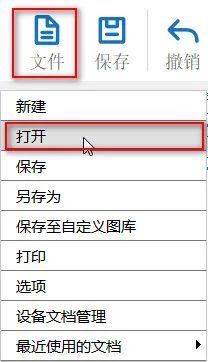
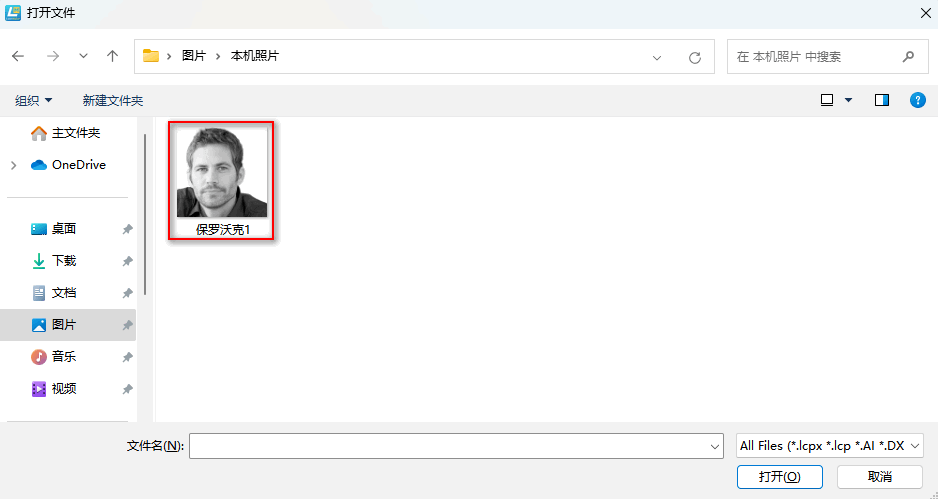
(3)Click on 'File' in the upper 'Function Area', then click on 'Open', double-click to open the image that needs to be carved, as shown in the following figure:

85d988e1a01325f8ce5c9e713500cb0c.jpgd79e1f7d4075cc714a0fccf084fd955e.png

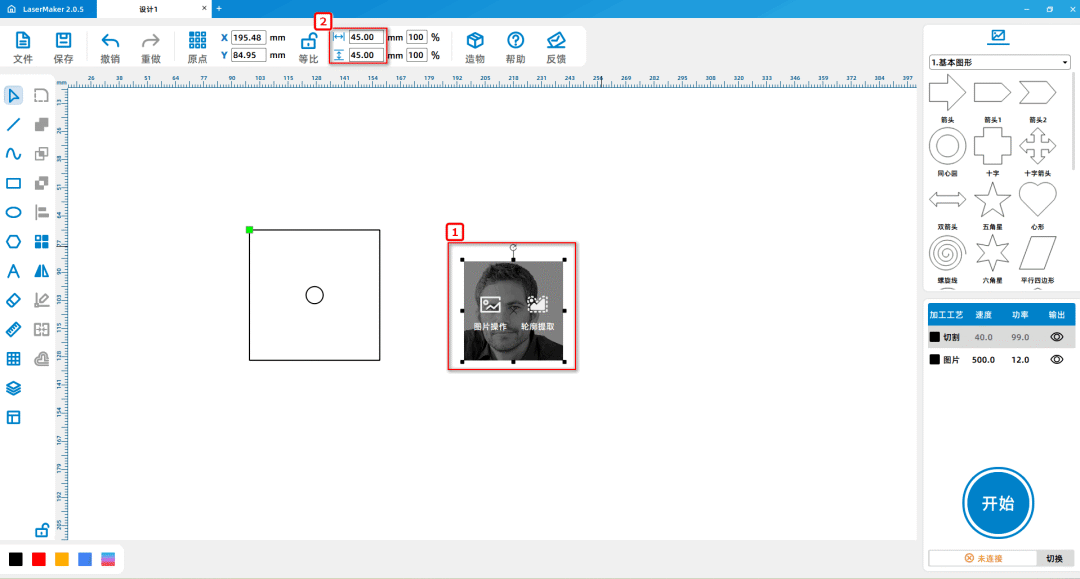
(4)Select the image and change its size to long from the 'Drawing Toolbar' above45mm, wide45mmThen move the graphic to align with the bottom left corner of the rectangle

As shown in the following figure:

3e335f185194d2817a87b9441dff4aec.png

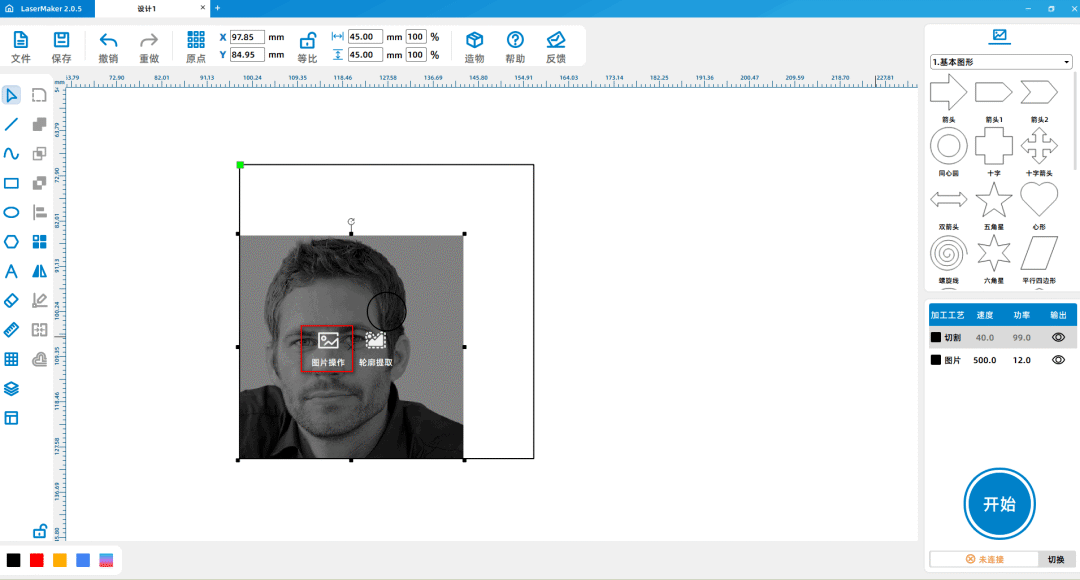
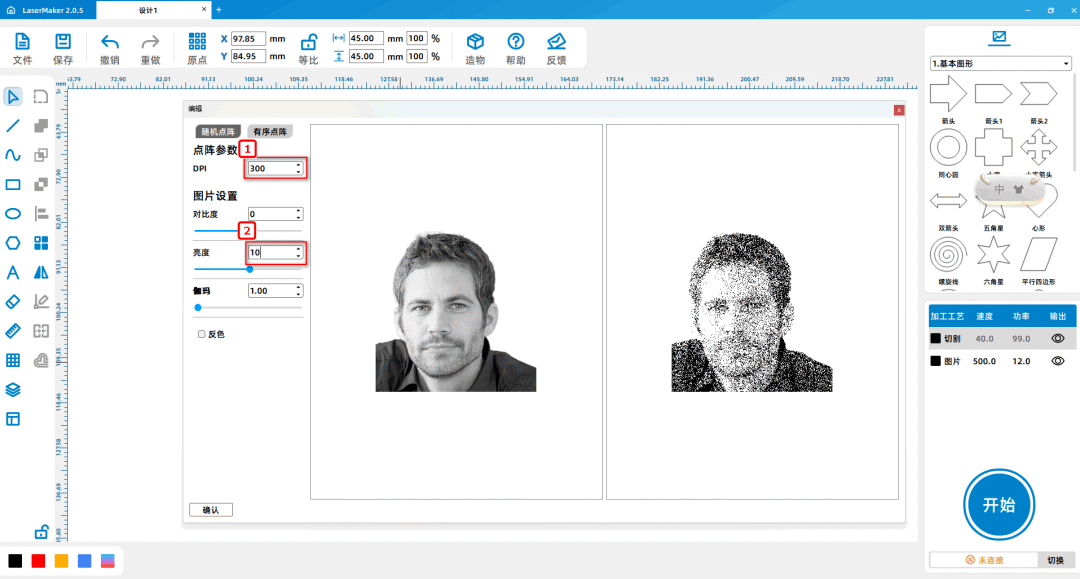
(5)Select image 'Paul Walker'1”Left click on 'Image Extraction' in the graphic to extract the imageDPIchange to300Make the image clearer, as shown in the following picture:

a4a87f4fb05b0e497e55690dfe293b51.png

788ac4b2933d3c2b9c3dc31d01397611.png

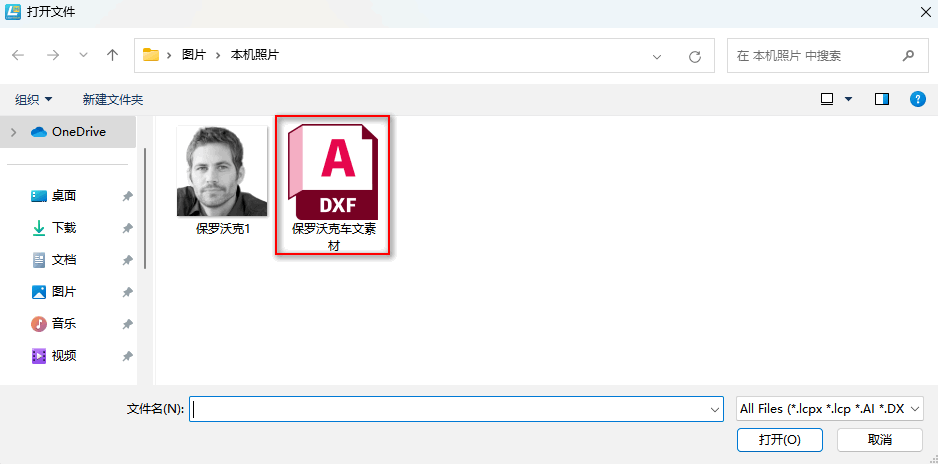
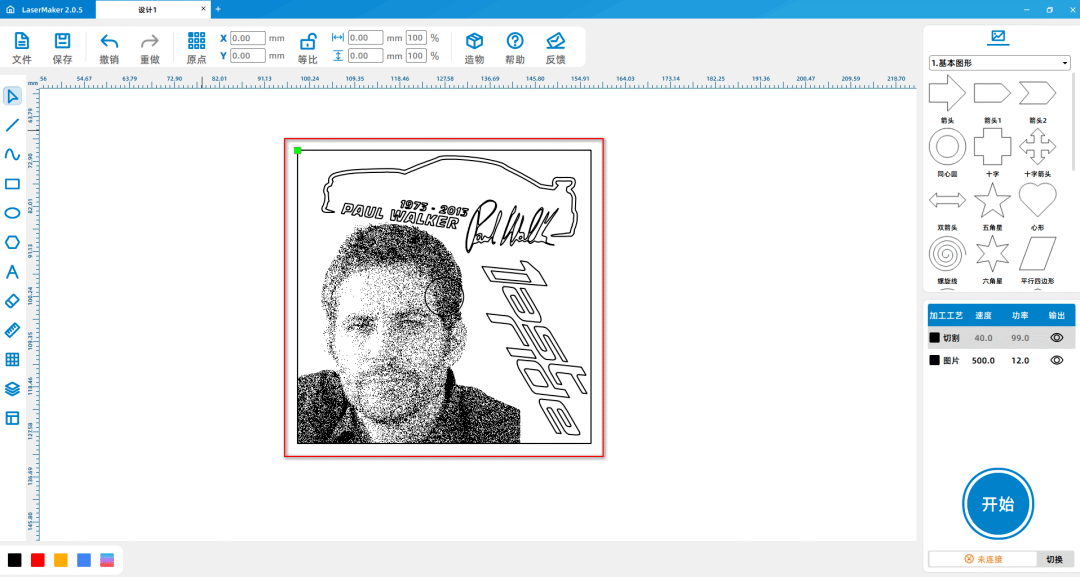
(6)Click on 'File' in the upper 'Function Area', then click on 'Open', double-click to open the desired material image, and adjust it to the appropriate position within the rectangle, as follows

As shown in the picture:

4148b79a211749174cf3057bdb2ae56b.png

f4069c1d612e8a0761ef6d8351f761ad.png

Tips:This material image was not added to the rubber brick and was only placed on a beech block for decorative purposes.


Laser processing

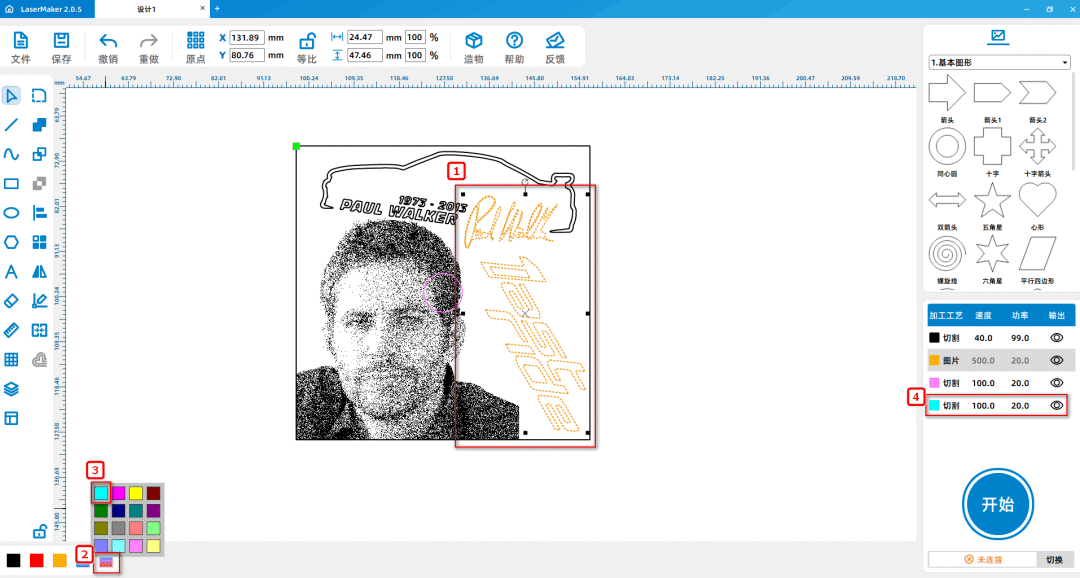
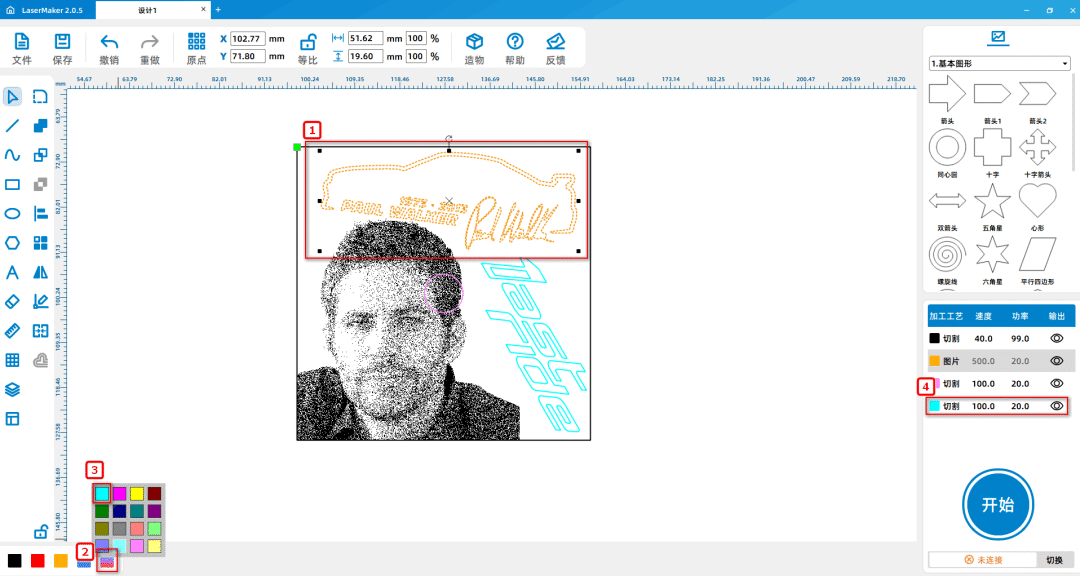
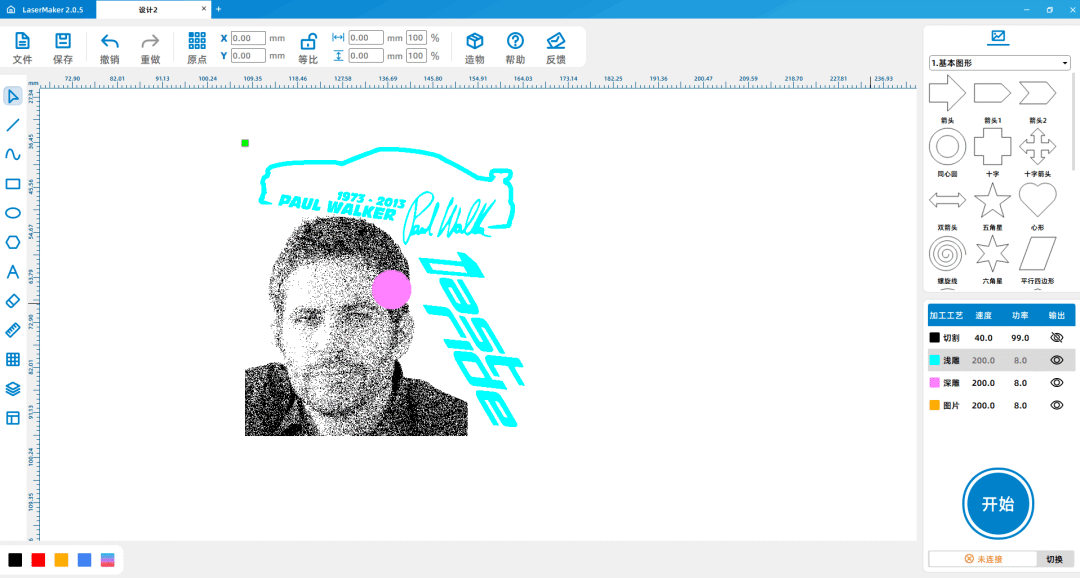
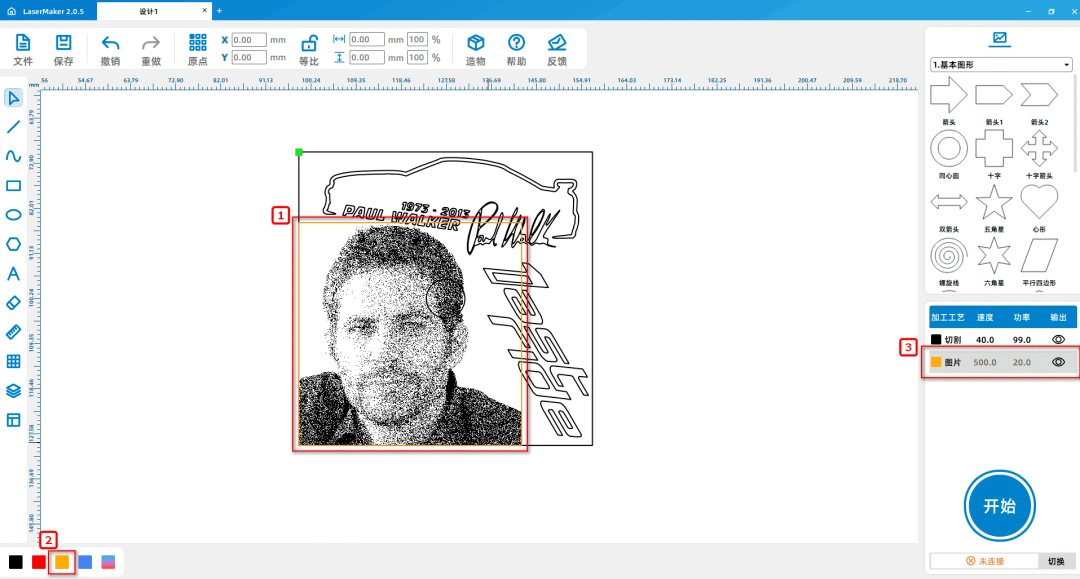
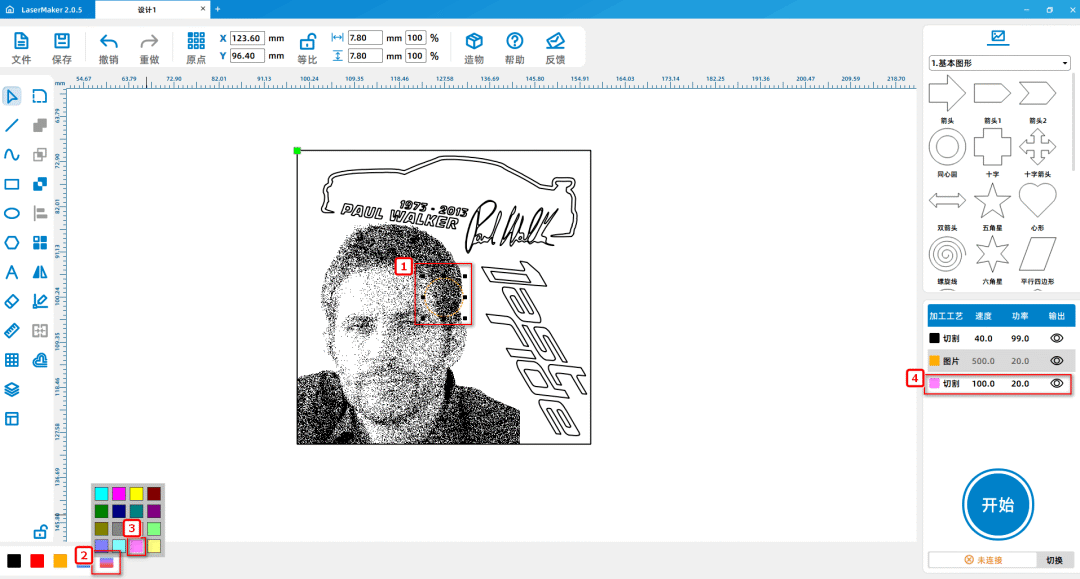
(1)Select image 'Paul Walker'1”Left click on the layer panel in the lower left corner of the mouse to change the contour layer to yellow; Select a perfect circle, left click on the layer panel in the lower left corner of the mouse to change the contour layer to

Purple; Select the image material "Paul Walker Car Text Material", left click on the layer panel in the lower left corner of the mouse to change the contour layer to blue, as shown in the following figure:
f9fe0688c2d7bebf689580e3e30fac36.png

a438a38047b8d7ee602dd38b2b8ca5f2.png

60c98d29bc9ef348b768c37b11d55098.png

6b98001d1f3c9de6a5c97c92234a1b64.png

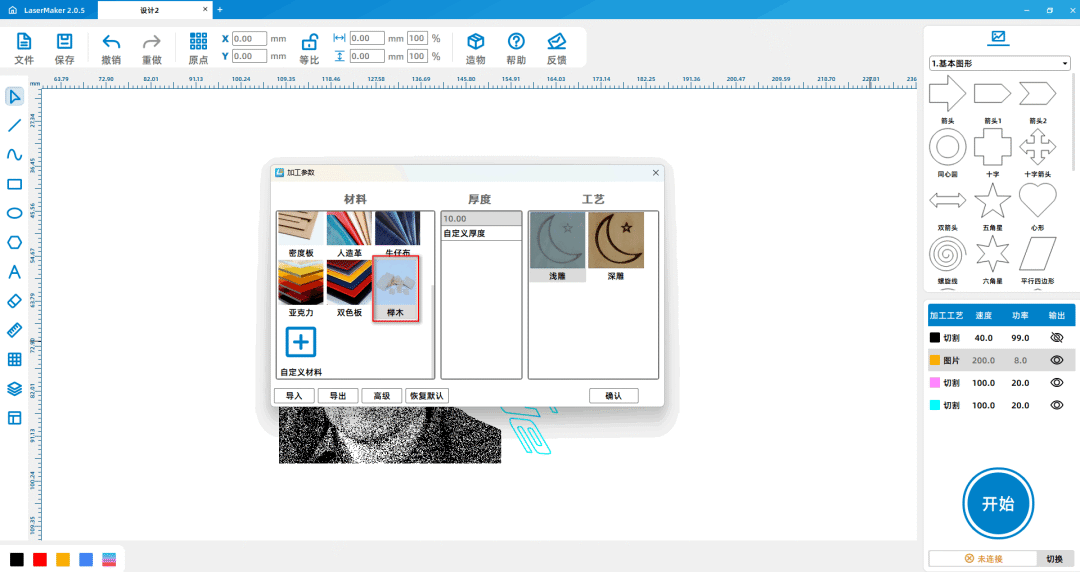
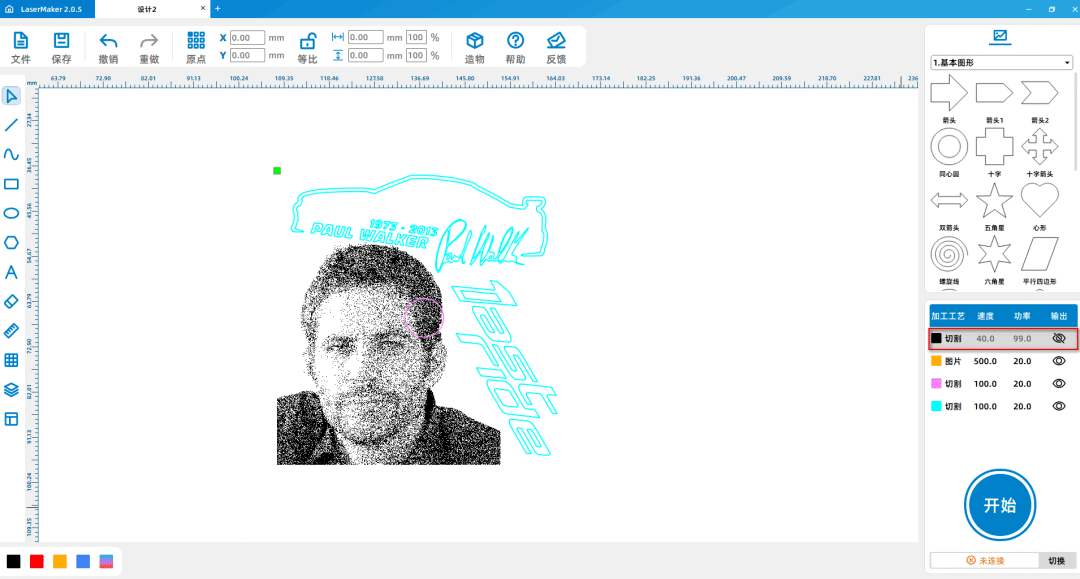
 (2)Double click the 'Processing Panel' in the bottom right corner with the mouseBlack layerLeft click on the right eye icon with the mouse to hide the layer, as shown in the following figure:
0db613be8d775d2d804df54bd09fdead.png

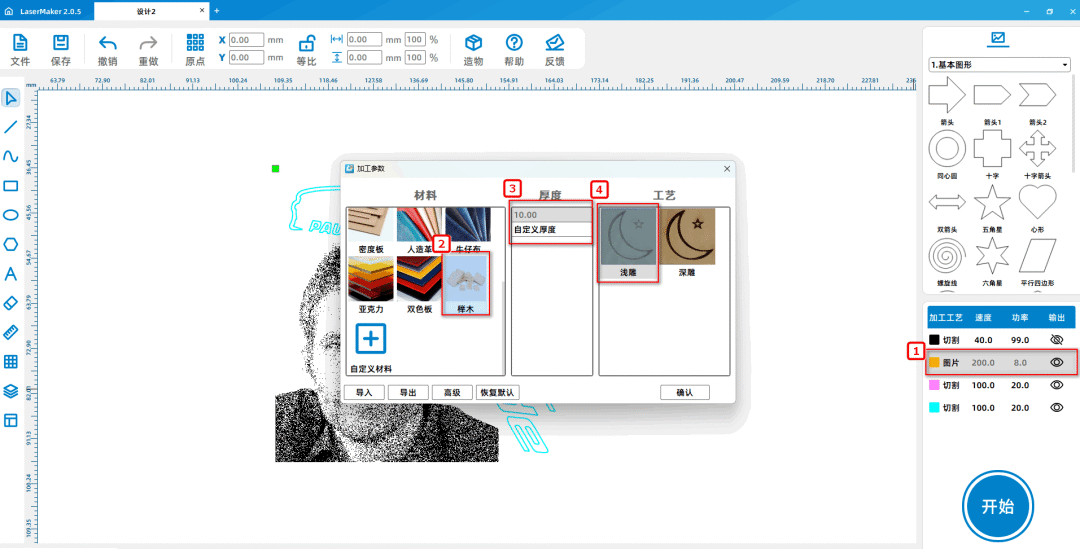
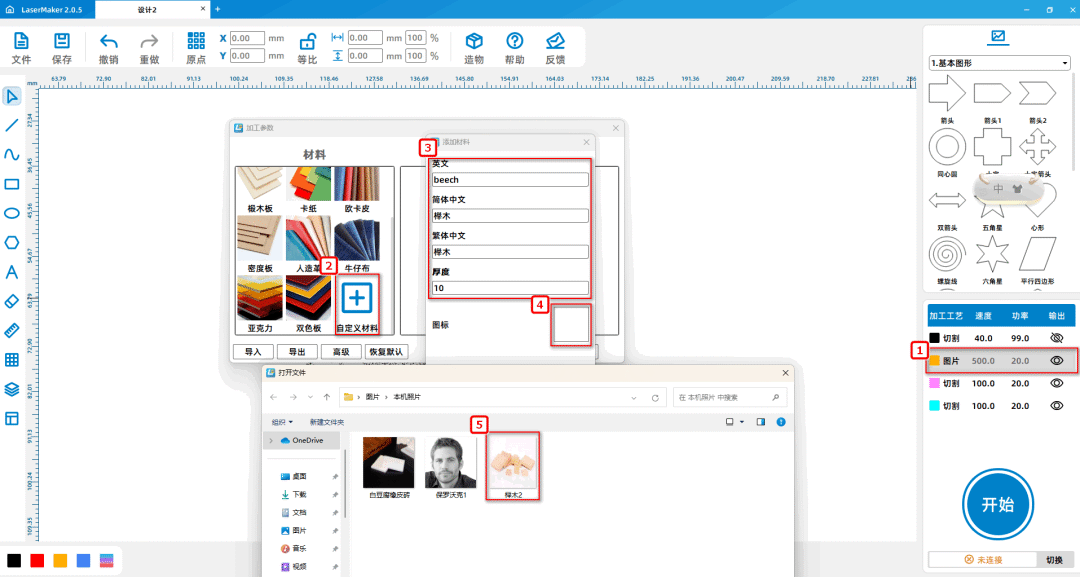
(3)Double click the 'Processing Panel' in the bottom right corner with the mouseYellow layer,Add custom material "beech wood", double-click "custom" with the mouse, and separate English, Simplified Chinese, and Traditional Chinese

Don't set it asbeechBeech wood, beech wood10mmDouble click the blank icon and select the beech wood material image; Set the material, thickness, and craftsmanship to beech wood10mm、

Shallow carving, as shown in the following picture:
7e5d08de19c47a743c851a671795666c.png

f4fe83a5e144cacd36af8d3b4c890410.png

5c719c944ff5977c16198a378584c2bc.png

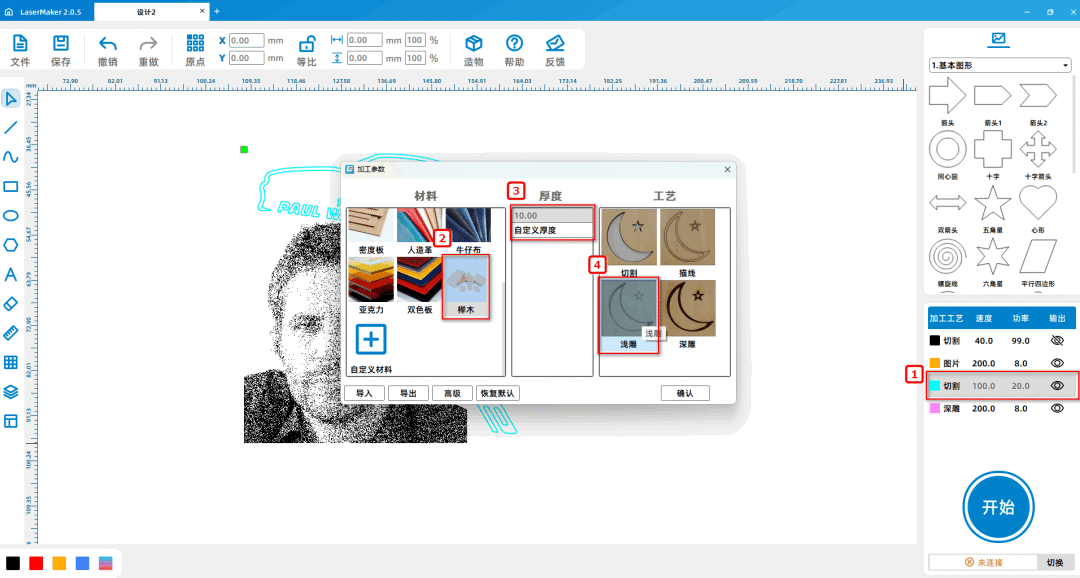
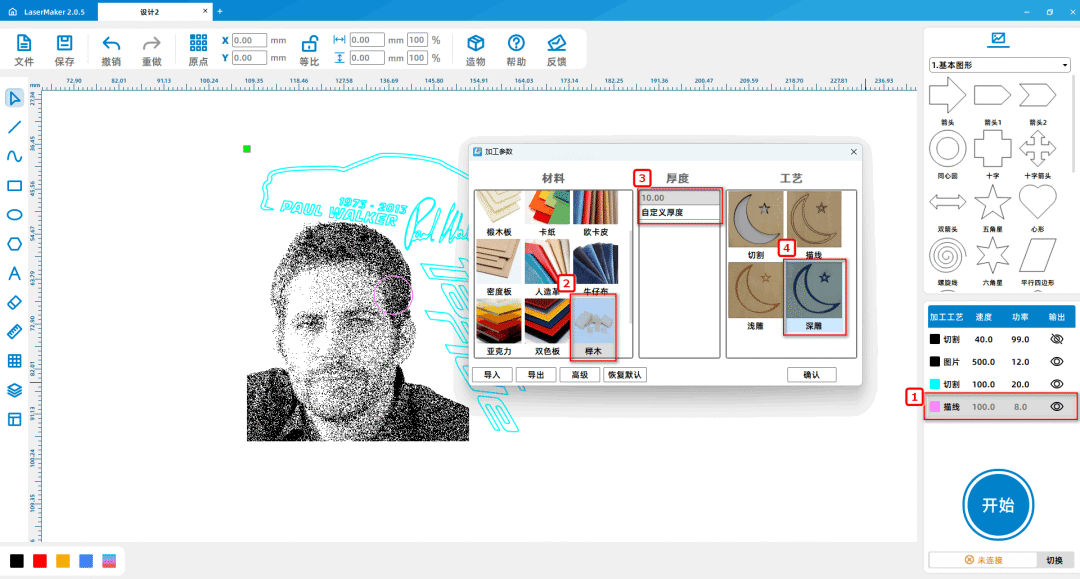
(4)Double click the 'Processing Panel' in the bottom right corner with the mousePurple layer,Set the material, thickness, and craftsmanship to beech wood10mmDeep carving; Double click on the bottom right corner with the mouse to select 'Processing'

The panelBlue layer,Set the material, thickness, and craftsmanship to beech wood10mmShallow carving; Adjust the positions of several layers in the order of "light carving, deep carving" as follows

As shown in the picture:
7a6e153535eaf4ef8240023f1814163b.png

5c8a9d31c205cc1f0be3cbf599a4a323.png

fb0a6387646710f34edec145e250a65f.png

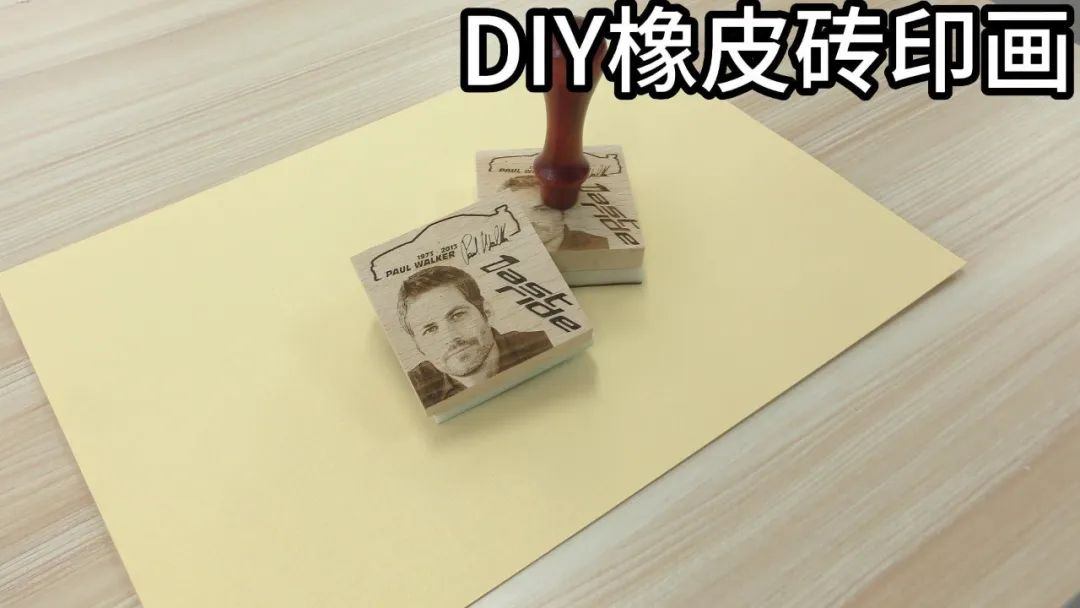
Works Display

9f7d9ab145ccf041ad3c1247cfccdad2.jpg

summary

In the process of creating this example, we learnedLaserMakerHow to use the 'Add Custom Materials' feature of the software. In the process of completing the 3D project, we need to first analyze the work, analyze its components, and then complete them one by one, and finally assemble them. Drawing and modeling are not difficult, everyone must try and practice more to become a better little designer!

comment (0)
Support drag and drop upload · most 10 Zhang · single sheet ≤ 3MB
Drag the image here or click "Select Image" to upload (supports multiple images)
Laser Creation Beginner Course | Case Seven:DIYRubber tile printing
drawing ID: SUCAI-14 2024-4-3 12:09
0
0
0
7
0Contribution points
Purchase points
collection
like
Grade discount
Basic Information
Update time 2024-4-3 12:09
advertisement